You are trying to log in to One Connect to view your child’s homework diary or grades, and the page displays an error. The password seems correct, the username too, but nothing works. This blockage regularly affects parents and students who use the digital workspaces associated with Open Digital Education.
Why the browser blocks access to One Connect even before entering the password
Before suspecting a password issue, check what is happening on the browser side. Several network settings or local configurations prevent the authentication page from loading correctly.
A saturated cache retains old versions of the login page. The browser then displays an outdated form that no longer communicates with the current One Connect server. Clearing the browser’s cache and cookies often suffices to restore access.
Another common trap: the home Wi-Fi connection sometimes uses DNS filtering or parental controls that block certain requests to the Open Digital Education servers. If you have configured filtering on your router or box, add the domain oneconnect.opendigitaleducation.com to the whitelist.
A detailed guide on authenticating on One Connect with Home Educ lists the most common causes of blockage and offers step-by-step solutions, including for specific network configurations.
Are you using a professional VPN or a corporate proxy on your laptop? These tools redirect traffic and can modify request headers. Temporarily disable the VPN to test the connection, then reactivate it once connected if necessary.
One Connect password denied: distinguishing between input error and locked account
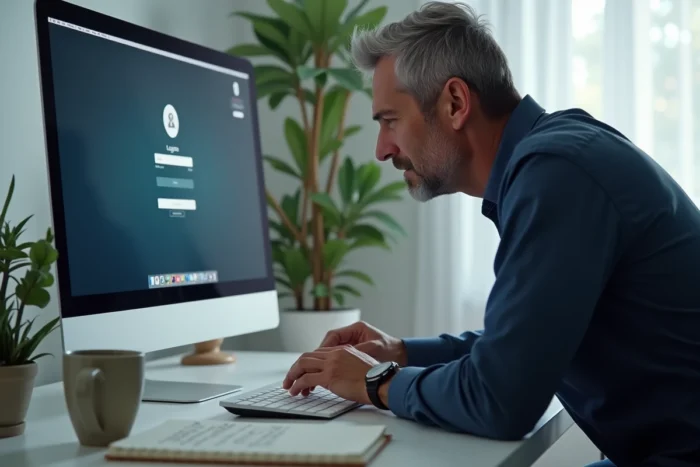
The majority of authentication failures stem from a discrepancy between what the user thinks they entered and what the server receives. Two situations deserve to be separated.
Invisible input error
On a phone, the virtual keyboard sometimes activates automatic capitalization on the first character. If your password starts with a lowercase letter, this silent correction causes a rejection. Tip: type the password in a visible text field (a note or a draft SMS), check each character, then copy-paste it into the login field.
Special characters can also pose a problem. A password containing an accent or a symbol like “€” may be interpreted differently depending on the keyboard encoding. Prefer standard ASCII characters (letters, numbers, periods, dashes) when creating or resetting the password.
Temporarily locked account
After several failed attempts, the platform blocks access to the account for a few minutes. This security mechanism protects against intrusion attempts. Wait about fifteen minutes without trying to log in again, then make a single attempt with the correct password.
If the blockage persists, the account may have been disabled by the institution. Contact the school’s or college’s digital referent directly to check the account status.
Two-factor authentication and teacher accounts: what changes on the digital workspaces
Several local authorities and academies are strengthening the security of educational platforms in response to the rise of cyber threats targeting the education sector. For staff (teachers, administrative), this translates into new obligations.
- Mandatory multi-factor authentication (MFA) for professional accounts in an increasing number of institutions. A second factor (SMS code, authentication app) is required in addition to the password.
- Mandatory periodic password changes, sometimes every quarter. An expired password results in a connection refusal without an explicit error message.
- Differentiated access between student, parent, and staff profiles. A teacher attempting to log in via the “parent” portal will be rejected even with correct credentials.
Have you activated MFA but changed your phone since? The authentication app on the old device no longer works. You need to request a reset of the second factor from your institution’s digital administrator.
Network settings and device that interfere with One Connect connection
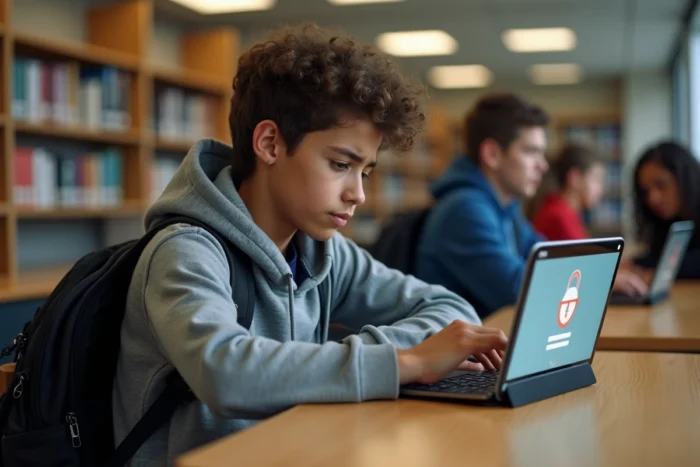
Beyond the browser, certain settings on the device itself disrupt authentication.
On an Apple device (iPhone, iPad), the “iCloud Private Relay” feature masks the real IP address. Some digital workspace servers interpret this relay as suspicious behavior and refuse the connection. Disable this option in Settings > Apple ID > iCloud > Private Relay.
On a computer running Microsoft Windows, the built-in firewall may block requests to domains it does not recognize. Ensure that the firewall allows outgoing HTTPS traffic to opendigitaleducation.com.
The 2.4 GHz Wi-Fi network is more stable for authentication than the 5 GHz band if you are far from the router. The 5 GHz band offers higher speed but reduced range: an unstable connection can interrupt data exchange during the login phase, causing a timeout.
Quick checks before contacting support
- Test the connection on another device connected to the same Wi-Fi network to isolate a device issue.
- Try using 4G/5G from a phone to rule out a blockage related to the home network.
- Open a private browsing window to bypass browser extensions that modify requests.
- Check that the device’s time and date are correct: a time zone mismatch prevents the validation of security certificates.
If none of these checks resolve the issue, note the exact error message displayed by the platform and forward it to the institution’s digital referent. An accurate error message speeds up diagnosis and avoids unnecessary back-and-forth with technical support.
Authentication issues on One Connect are almost always resolved by isolating the cause: browser, password, network configuration, or enabling two-factor authentication. Proceed by elimination, starting with the simplest (cache, cookies, private browsing) before contacting the institution.